
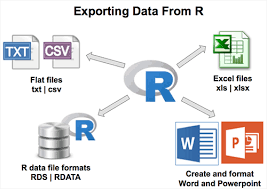
Sometimes, getting your R code out of your R environment and into a shareable format can feel tricky, especially when you’re just starting. You might wonder how to show your work to others or save it for later without losing anything important. This guide is here to make that process easy.
We’ll walk you through exactly how to export r code step by step, so you can share your creations with confidence.
Key Takeaways
- You can save your R code as a plain text file.
- RStudio provides easy ways to copy and paste code.
- Saving your script from RStudio is a common method.
- You can export plots and tables generated by R code.
- Sharing R code helps others reproduce your results.
Saving Your R Code Files
Saving your R code is fundamental to any project. It ensures your work is backed up and allows you to share it with collaborators or simply revisit it later. The most straightforward way to save your R code is by using the “Save Script” function within your R environment, typically RStudio.
This creates a plain text file that contains all the commands you’ve written. These files often have a .R extension, making them easily identifiable as R scripts. This method is crucial because it preserves the exact sequence of commands, which is vital for reproducibility in data analysis and programming.
What is an R Script File
An R script file is essentially a text document that holds a series of R commands. Think of it like a recipe; it lists all the ingredients and the steps needed to achieve a particular outcome. When you run an R script, the R interpreter reads the commands one by one and executes them.
This makes it incredibly powerful for automating tasks, replicating analyses, and sharing your workflow. The .R file extension is a convention that tells the R software and other programs that this is a script meant to be run in R. These files are plain text, meaning they can be opened and edited with any basic text editor, though using an Integrated Development Environment (IDE) like RStudio provides enhanced features for writing and managing them.
The structure of an R script is linear. Commands are executed from top to bottom. This order is important because some commands might depend on the results of previous ones.
For example, you might first load a dataset, then clean it, and finally, create a visualization. Each of these steps would be a separate command or a series of commands within the script. Without this ordered sequence, your analysis would not work correctly.
The beauty of script files is that they document your entire thought process and analytical steps, making your work transparent and repeatable.
When you save an R script, you are creating a valuable artifact of your work. It’s not just the code itself; it’s the entire reproducible workflow. This is highly valued in scientific research, data analysis, and any field where data-driven decisions are made.
If you need to rerun an analysis, modify it, or have someone else verify it, having the original script is indispensable. It’s the blueprint of your data processing and analysis pipeline.
Using RStudio to Save Scripts
RStudio is the most popular Integrated Development Environment (IDE) for R, and it makes saving R scripts very intuitive. When you open RStudio, you typically have several panes. One of them is the “Source” editor pane, where you write and edit your scripts.
To save the script you are currently working on, you can click the “File” menu at the top and then select “Save” or “Save As.” Alternatively, you can use the keyboard shortcut, which is usually Ctrl+S (or Cmd+S on a Mac) for saving. This will prompt you to choose a location on your computer and give your script a name. It’s good practice to give your scripts descriptive names that indicate their purpose, like “data_cleaning.R” or “initial_analysis.R.”
Once saved, your script resides as a .R file on your system. You can then open this file later directly within RStudio, or even with a simple text editor, to continue your work or share it. RStudio also offers features like syntax highlighting, which makes your code easier to read and debug, and line numbering, which is helpful for referencing specific parts of your script.
The IDE essentially provides a much more efficient and user-friendly environment for script management compared to using a basic text editor alone. This integration makes the process of saving and managing your R code a seamless part of your workflow.
Remember, saving frequently is a good habit. RStudio typically has an “auto-save” feature, but manually saving ensures that you don’t lose any recent changes. When you save a script, RStudio doesn’t just save the text; it also saves any associated metadata or settings that might be relevant to your session.
This ensures that when you reopen the script, your environment is as close as possible to when you last saved it, aiding in continuity and reducing the chances of errors due to environmental differences.
Saving Scripts from the R Console
While RStudio is the preferred environment for most users, you can also save R scripts directly from the base R console. If you have typed commands directly into the console and want to save them, you can use the `savehistory()` function. For example, typing `savehistory(“my_session_history.R”)` will save all the commands you’ve entered in the current R session into a file named “my_session_history.R.” This is useful for recalling commands, but it’s not the same as saving a structured script file.
For proper script management, it’s always better to write your code in a script editor and save it as a .R file.
The console is primarily for interactive execution of single commands or small blocks of code. If you have a substantial amount of code you want to save and reuse, composing it in a script file is the correct approach. The `savehistory()` function is more of a convenience for remembering what you did in an interactive session rather than a method for developing and distributing code.
Think of it as a personal log rather than a shareable document. For actual code export and sharing, always rely on saving your script files through an IDE like RStudio.
Copying and Pasting Code
Copying and pasting is a quick and accessible way to share snippets of R code, especially for smaller tasks or when you want to quickly transfer code between different R sessions or documents. This method is widely used for sharing code on forums, in emails, or when demonstrating a particular function or technique. While not as formal as saving a script file, it’s incredibly practical for everyday use.
Copying Code from the RStudio Editor
In RStudio, you can select the lines of code you want to copy using your mouse, just like in any other text editor. Once selected, you can right-click and choose “Copy,” or use the standard keyboard shortcuts: Ctrl+C (or Cmd+C on a Mac). The selected code is then stored in your computer’s clipboard.
You can then paste this code into another R script, the R console, an email, a document, or any other application that accepts text input.
This is particularly useful when you want to share a specific function you’ve written, a data manipulation step, or a plotting command. For example, if you’ve created a helpful function, you can copy just that function definition and paste it elsewhere for someone else to use. This allows for targeted sharing of code without necessarily sharing your entire project script.
Pasting Code into the R Console
After copying code, you can paste it into the R console by right-clicking and selecting “Paste,” or using Ctrl+V (or Cmd+V). The R interpreter will then execute the pasted commands. Be cautious when pasting multiple lines of code into the console, as they will run sequentially.
If the code is intended to be part of a larger script, it’s generally better to paste it into a new or existing R script file in RStudio and then run it from there.
Pasting into the console is great for testing small pieces of code or applying a specific command quickly. However, for anything more than a few lines, it’s advisable to use a script file. This way, you maintain a record of the code, and it’s easier to make modifications or reuse it later.
Pasting directly into the console can lead to a cluttered command history and make it harder to track your work over time.
Pasting Code into Documents and Emails
You can also paste copied R code directly into word processing documents (like Microsoft Word or Google Docs), emails, or online forums. However, it’s important to consider formatting. Plain text pasting might lose indentation and spacing, making the code harder to read.
Many platforms offer “code formatting” options that preserve the visual structure of your code, often using monospace fonts and sometimes even syntax highlighting. Always look for these options to ensure your shared code is clear and easy for others to understand.
For example, when asking for help on a forum, pasting formatted code makes it much easier for others to diagnose your problem. Similarly, in a report, well-formatted code makes your methods section clearer. If you’re using a simple text editor, ensure you maintain consistent indentation.
This visual structure is key to code readability and understanding.
Exporting R Outputs
While exporting the R code itself is essential, you often also need to export the results or outputs that your code generates. This can include tables, plots, or even model summaries. These outputs are what you typically present to others or include in reports.
Exporting Plots
R offers powerful functions for exporting graphical outputs. The `png()`, `jpeg()`, `pdf()`, and `svg()` functions are commonly used to save plots. You typically start by calling one of these functions, specifying the filename and desired dimensions.
Then, you create your plot using functions like `plot()`, `ggplot()`, etc. Finally, you close the graphics device using `dev.off()`. This tells R that you are finished with the plot and it should be saved to the specified file.
For instance, to save a plot as a PNG file, you would use:
png("my_plot.png", width = 800, height = 600)
plot(1:10, (1:10)^2)
dev.off()
This code creates a PNG file named “my_plot.png” in your current working directory, with the specified width and height. The `plot(1:10, (1:10)^2)` command generates a simple scatter plot, and `dev.off()` saves it. Using `pdf()` is excellent for high-quality vector graphics that can be scaled without losing resolution, making them ideal for publications.
`svg()` provides scalable vector graphics that are also web-friendly.
Example: Saving a ggplot2 Plot
If you’re using the popular `ggplot2` package, exporting plots is also straightforward. You often assign the plot object to a variable and then use functions like `ggsave()` to export it. `ggsave()` automatically detects the plot dimensions and can save in various formats.
- Create your plot:
my_gg_plot <- ggplot(mtcars, aes(x=wt, y=mpg)) + geom_point() - Save the plot:
ggsave("mpg_vs_wt.png", plot = my_gg_plot, width = 6, height = 4, units = "in")
In this example, `ggsave()` takes the plot object `my_gg_plot` and saves it as “mpg_vs_wt.png” with specified dimensions in inches. This function is very flexible and is a go-to for many `ggplot2` users.
Exporting Data Tables
Your R code likely generates or manipulates data. Exporting these data tables is crucial for sharing them with others or for use in other software. R provides several functions for this, depending on the desired file format.
CSV Files
Comma Separated Values (CSV) is a widely compatible format. The `write.csv()` function is commonly used to export data frames to CSV files. It automatically handles quoting and escaping of values that might contain commas or special characters.
For example, to save the built-in `iris` dataset:
write.csv(iris, "iris_data.csv", row.names = FALSE)
Here, `iris` is the data frame, `”iris_data.csv”` is the desired filename, and `row.names = FALSE` prevents R from writing the row numbers as a separate column in the CSV file, which is usually the desired behavior.
Excel Files
For exporting to Microsoft Excel format (.xls or .xlsx), you’ll typically need to install and load a package like `writexl` or `openxlsx`.
- Install and load the package:
install.packages("writexl")andlibrary(writexl) - Export your data frame:
write_xlsx(iris, "iris_data.xlsx")
The `write_xlsx()` function from the `writexl` package makes it very simple to export R data frames directly into Excel files. This is incredibly useful for sharing data with colleagues who primarily use Excel for their work.
Other Formats
Depending on your needs, you might also export data to other formats like:
- Tab-Separated Values (TSV): Using `write.table(data, “file.tsv”, sep=”\t”, row.names=FALSE)`. TSV is similar to CSV but uses tabs as separators.
- JSON: Using packages like `jsonlite`. This is common for web applications and data interchange.
- Databases: Using packages like `DBI` and specific database connectors to write directly to SQL databases.
Choosing the right export format depends on where the data will be used next. CSV is universal. Excel is common for business users.
JSON is prevalent in web development. Direct database export is for robust data management systems.
Exporting Model Summaries and Text Outputs
Sometimes you need to export the textual output of your analyses, such as the summary of a statistical model. You can capture this output and save it as a text file.
You can capture the output of functions like `summary()` by assigning it to a variable and then using `capture.output()` to write it to a file.
model <- lm(mpg ~ wt, data = mtcars)
model_summary <- capture.output(summary(model))
writeLines(model_summary, "model_summary.txt")
In this example, `summary(model)` produces the model summary. `capture.output()` captures this text output, and `writeLines()` then writes it to a text file named “model_summary.txt.” This is a clean way to save detailed reports of your statistical findings.
Sharing Your R Code with Others
Sharing your R code is key to collaboration and reproducibility. There are several methods, each suited for different scenarios.
Through Version Control Systems
For collaborative projects, using a version control system like Git is highly recommended. Platforms like GitHub, GitLab, or Bitbucket allow you to store your R scripts and other project files in a central repository. Git tracks changes to your files over time, allowing you to revert to previous versions, merge contributions from multiple people, and manage different branches of development.
Your R scripts (.R files) are committed to the repository, making them accessible to all collaborators.
When you share your R code via Git, you’re not just sharing the code; you’re sharing its entire history. This is invaluable for understanding how the project evolved and for debugging. Collaborators can “clone” the repository to their local machines, getting a complete copy of all the R scripts and data.
This ensures everyone is working with the same, up-to-date code base, minimizing conflicts and streamlining teamwork.
Via Email or Messaging
For smaller code snippets or quick sharing, you can attach your .R script files to emails or send them via instant messaging platforms. Ensure you name your files descriptively. If you are sharing only a few lines of code, pasting them directly into the message or using formatted code blocks (if the platform supports it) can be more efficient than sending an attachment.
When sending code via email, consider adding a brief explanation of what the code does and any prerequisites, like required packages. This context helps the recipient understand and use your code more effectively. For example, you might say, “Here’s the R script to calculate the monthly sales trends.
You’ll need to have the ‘dplyr’ package installed.”
Using R Markdown
R Markdown (.Rmd files) is a powerful framework that blends R code, its output (like plots and tables), and narrative text into a single document. You can then “knit” an R Markdown file into various formats, including HTML, PDF, Word documents, or even presentations. This is an excellent way to present your R code along with explanations and results in a polished, professional manner.
The code itself is embedded within the document and is executed when the file is knitted, ensuring that the output is always up-to-date with the code.
An R Markdown document allows you to write explanatory text in plain language, then insert code chunks that R executes. The results of these code chunks—tables, plots, or even just values—are directly embedded in the final output. This makes your analysis transparent and easy to follow, as the reader can see the code that produced each result.
It’s a fantastic tool for reports, tutorials, and reproducible research.
Example: A Simple R Markdown Snippet
Here’s a simplified look at an R Markdown file:
title: "My First R Markdown Report"
output: html_document

This document shows how to export R code and its results.

### Data Loading and Summary

First, we load some data.

```
data(iris)
summary(iris)
```

The summary above shows the basic statistics for the iris dataset.

### Creating a Plot

Now, let's create a plot from this data.

```
library(ggplot2)
ggplot(iris, aes(x = Sepal.Length, fill = Species)) +
 geom_histogram(binwidth = 0.2)
```

This histogram visualizes the distribution of Sepal Length, broken down by Species.
When you knit this .Rmd file, R executes the code in the ““` blocks. The output of `summary(iris)` (a table) and the `ggplot` plot will be embedded directly into the final HTML document. This is a complete package of code, explanation, and results.
Common Challenges and Solutions
Beginners often face a few common hurdles when trying to export their R code and outputs. Understanding these challenges and their solutions can make the process much smoother.
Challenge: Code Not Running When Shared
A frequent problem is when code that works on one machine doesn’t run on another. This often happens due to differences in package versions, operating systems, or file paths. To solve this:
- Use Relative Paths: Instead of hardcoding file paths like “C:/Users/YourName/Documents/data.csv,” use paths relative to your script’s location. R packages like `here` can help manage this effectively.
- Specify Package Versions: If possible, mention the versions of R and packages used. Tools like `renv` can help create reproducible R environments.
- Include Package Installations: At the beginning of your script, add lines like `if (!require(“dplyr”)) install.packages(“dplyr”)` followed by `library(dplyr)`. This ensures the necessary packages are installed if they are missing.
These steps create more robust and portable R code, making it easier for others to replicate your analysis without encountering errors.
Challenge: Losing Formatting in Shared Code
When pasting code into documents or emails, indentation and spacing can get lost, making the code hard to read. As mentioned earlier, the solution is to use code formatting features provided by the platform you’re using. Most modern text editors, email clients, and online forums have a way to format code blocks.
Look for buttons like `` or options like “Format as Code.” If no such option exists, manually ensuring consistent indentation (e.g., using spaces instead of tabs, and indenting nested structures) is crucial.
Challenge: Exporting Interactive Plots
Standard R plot export functions create static images. If you need interactive plots (where users can zoom, pan, or hover over data points), you’ll need to use specialized packages.
- `plotly` package: This package allows you to convert static R plots (including `ggplot2` plots using `ggplotly()`) into interactive HTML visualizations. You can then save these as standalone HTML files.
- `htmlwidgets` framework: Many R packages, like `leaflet` for maps or `highcharter` for charts, are built on this framework and generate interactive plots that can be embedded in web pages or saved as HTML.
Interactive plots enhance user engagement and provide a richer data exploration experience compared to static images.
Common Myths Debunked
Myth 1: R code is only for statisticians.
Reality: While R is powerful for statistics, it’s a versatile programming language used for data science, machine learning, data visualization, web scraping, and even developing web applications (with packages like Shiny). Its open-source nature and vast community support make it accessible to anyone interested in data analysis and programming.
Myth 2: You must be a math genius to use R.
Reality: You don’t need advanced mathematical degrees to use R effectively. While understanding statistical concepts is helpful for interpreting results, R provides functions that handle the complex calculations. Learning R involves understanding its syntax, data structures, and common functions, which is more about programming logic than high-level math.
Myth 3: Exporting R code means losing its functionality.
Reality: When you export R code as a .R file, you are saving the exact instructions that R can execute. As long as the recipient has R installed and any necessary packages, they can run the exact same code to achieve the same results. The goal of exporting R code is precisely to maintain and share its functionality and reproducibility.
Myth 4: R is too slow for large datasets.
Reality: While base R can be slow with very large datasets, there are many ways to optimize performance. Using packages like `data.table` and `dplyr` for data manipulation is significantly faster. Furthermore, R can interface with external databases and distributed computing frameworks, allowing it to handle datasets of virtually any size efficiently.
Frequently Asked Questions
Question: How do I make sure someone else can run my R code?
Answer: Ensure you save your code as a .R file and provide a list of required packages with instructions on how to install them. Using R Markdown to bundle code, output, and explanations is also very effective.
Question: Can I export my R code and plots together?
Answer: Yes, R Markdown is the best way to do this. It allows you to embed R code chunks within a document, and when you “knit” it, the code, its output, and any accompanying text are combined into a single file like HTML or PDF.
Question: What is the difference between saving a script and copying/pasting code?
Answer: Saving a script (.R file) creates a permanent, structured record of your code that can be run independently. Copying and pasting is for quick, often temporary, transfer of small code snippets between sessions or documents.
Question: How do I export just the summary of a model, not the whole output?
Answer: You can use `capture.output()` to get the text output of functions like `summary()` and then `writeLines()` to save it to a .txt file. You can also select specific parts of the summary object if it’s structured appropriately.
Question: Is it hard to export my R code to a format others can open easily?
Answer: No, exporting R code as a .R file is very simple. These are plain text files that anyone with R installed can open. Exporting outputs like tables (CSV, Excel) and plots (PNG, PDF) are also straightforward using built-in or easily installable packages.
Wrap Up
Exporting R code and its outputs is a fundamental skill for sharing your work. You can save your code as .R scripts, copy snippets, or bundle everything with R Markdown. Making your code reproducible ensures others can run it.
Focus on clear file names and including necessary package information.