
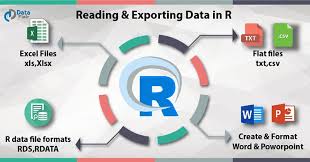
Many folks new to R find exporting data a bit tricky at first. It seems simple, but when you need your R data in a different format, like for Excel or a report, it can feel like a puzzle. Don’t worry, learning how to export data from r is easier than you think!
We’ll walk through the common ways to get your data out of R so you can use it anywhere. Stick around for a clear, step-by-step guide that makes this task simple.
Key Takeaways
- You will learn how to save your R data into CSV files.
- This post explains how to export data directly to Excel.
- You will discover methods for saving data in plain text formats.
- We cover how to export specific parts of your data.
- You will find out how to name your exported files easily.
- The guide provides simple code examples for each method.
Saving Your R Data As CSV Files
Comma Separated Values, or CSV, is a super common way to store data. Think of it like a simple text file where each piece of data is separated by a comma. This makes it easy for many different programs to read your data.
CSV files are great because they are plain text, meaning they don’t have any fancy formatting that might cause problems. This makes them widely compatible. Many spreadsheets, databases, and other software can open and understand CSV files without any issues.
It’s a reliable format for sharing your information.
In R, the function `write.csv()` is your best friend for this. It’s designed to take your R data frame and turn it into a CSV file. You just tell it what data to save and what to name the file.
It’s straightforward and handles the commas and line breaks for you. This is often the first method people learn when they need to get data out of R.
The write.csv() Function Explained
The `write.csv()` function is built into R’s base package, so you don’t need to install anything extra to use it. Its main job is to convert an R object, usually a data frame, into a file that uses commas to separate values and new lines for each row. This makes it very easy to import into other software like Microsoft Excel, Google Sheets, or database systems.
When you use `write.csv()`, you need to give it a few pieces of information. First, you specify the R object (like your data frame) that you want to save. Second, you provide the name you want for the output file, making sure to include the `.csv` extension.
For example, if you have a data frame called `my_data` and you want to save it as `output_data.csv`, you would write `write.csv(my_data, “output_data.csv”)`.
Arguments of write.csv()
`write.csv()` has some useful arguments that let you control how your file is created. The most common ones are `row.names` and `quote`.
- row.names: By default, R includes the row numbers of your data frame as a separate column in the CSV file. This can sometimes be confusing when you open the file in other programs. If you don’t want these numbers, you can set `row.names = FALSE`. This is a very common step for cleaner data export.
- quote: This argument controls whether R adds quotation marks around character strings. By default, it’s set to `TRUE`, which means strings are quoted. This helps ensure that commas within a string don’t get mistaken for separators. If you are sure your text data doesn’t contain commas or other special characters that would be messed up by quoting, you could set `quote = FALSE`, but it’s usually safer to leave it as default.
Example: Saving A Data Frame
Let’s say you have a simple data frame named `student_grades`. It contains student names and their scores on a test.
student_grades <- data.frame(
 Name = c("Alice", "Bob", "Charlie", "David"),
 Score = c(85, 92, 78, 88)
)
To save this data frame to a CSV file named `grades.csv` without row names, you would use the following R code:
write.csv(student_grades, "grades.csv", row.names = FALSE)
After running this code, a file named `grades.csv` will appear in your R working directory. When you open it in a spreadsheet program, it will look like this:
Name,Score
Alice,85
Bob,92
Charlie,78
David,88
Notice how the row numbers are gone because we set `row.names = FALSE`. This makes the data cleaner for use in other applications. If you wanted to include the row names, you would simply omit that argument or set `row.names = TRUE`.
Exporting Data Directly To Excel
While CSV is fantastic for compatibility, sometimes you need to send files that open directly in Microsoft Excel with all its formatting options intact. This is where packages that can write `.xlsx` files come in handy. These packages allow R to create native Excel files, which are often preferred in business settings or for presentations.
The most popular package for this task is `writexl`. It’s lightweight and easy to use, focusing on just writing data to Excel files without a lot of extra dependencies. Another common choice is the `openxlsx` package, which offers more advanced features for controlling Excel formatting, but `writexl` is perfect for simple data exports.
Using The writexl Package
First, you’ll need to install and load the `writexl` package if you haven’t already.
install.packages("writexl")
library(writexl)
The main function in this package is `write_xlsx()`. It works very similarly to `write.csv()`, but it creates an `.xlsx` file.
Basic Usage of write_xlsx()
The `write_xlsx()` function takes the R object (again, usually a data frame) and the desired file name as its primary arguments. For example, to save a data frame named `sales_data` to an Excel file called `sales_report.xlsx`, you would type:
write_xlsx(sales_data, "sales_report.xlsx")
This single line of code does all the heavy lifting. R will create a new Excel file in your working directory with the data from your `sales_data` data frame. The file will typically open with your data in the first sheet, named “Sheet1”.
Example: Exporting Sales Figures
Imagine you have a data frame tracking monthly sales figures.
sales_data <- data.frame(
 Month = c("January", "February", "March", "April"),
 Revenue = c(15000, 17500, 16000, 18000),
 UnitsSold = c(150, 175, 160, 180)
)
To export this into an Excel file named `monthly_sales.xlsx`:
library(writexl)
write_xlsx(sales_data, "monthly_sales.xlsx")
When you open `monthly_sales.xlsx`, you will see a structured table with “Month”, “Revenue”, and “UnitsSold” as column headers and the data correctly laid out. This format is ideal for sharing with colleagues who primarily use Excel.
Exporting Multiple Data Frames To Different Sheets
A powerful feature of `write_xlsx()` is its ability to write multiple data frames to a single Excel file, each on its own sheet. To do this, you need to provide a list of data frames, where each element of the list is named with the desired sheet name.
# Assuming you have another data frame called 'costs_data'
costs_data <- data.frame(
 Month = c("January", "February", "March", "April"),
 Expenses = c(5000, 5500, 5200, 5800)
)

# Create a list of data frames with sheet names
excel_list <- list("Sales Summary" = sales_data, "Cost Breakdown" = costs_data)

# Write to Excel
write_xlsx(excel_list, "financial_report.xlsx")
This will create `financial_report.xlsx` with two sheets: “Sales Summary” containing your `sales_data` and “Cost Breakdown” containing your `costs_data`. This is incredibly useful for consolidating related information into one organized file.
Exporting Data To Other Plain Text Formats
Besides CSV, there are other plain text formats that R can export to. These are useful when you need very specific plain text files, perhaps for older systems, simple data logging, or when a specific delimiter other than a comma is required. Tab-delimited files are a prime example.
Tab-delimited files use a tab character (`\t`) to separate values instead of commas. They are also plain text and highly compatible. The `write.table()` function in R is a versatile tool that can handle exporting to various delimited formats, including tab-delimited files.
Using The write.table() Function
The `write.table()` function is another powerful tool in R’s base package. It’s more general than `write.csv()` and can be used to write R objects to text files with custom delimiters. This gives you a lot of control over the output.
Key Arguments for Delimited Files
When using `write.table()`, several arguments are important for creating delimited files:
- file: This is the name of the file you want to create.
- sep: This specifies the separator character. For tab-delimited files, you’d use `sep = “\t”`. For space-delimited, you’d use `sep = ” “`.
- row.names: Similar to `write.csv()`, this controls whether row names are included. Set to `FALSE` to exclude them.
- col.names: This controls whether column names are written to the file. Set to `TRUE` or `FALSE`. If you want to write column names, it’s often good practice to set `col.names = TRUE`.
- quote: Controls whether character strings are quoted. Default is `TRUE`.
Example: Creating A Tab-Delimited File
Let’s use our `student_grades` data frame again. This time, we want to save it as a tab-delimited file.
student_grades <- data.frame(
 Name = c("Alice", "Bob", "Charlie", "David"),
 Score = c(85, 92, 78, 88)
)
To create a tab-delimited file named `grades_tab.txt`:
write.table(student_grades, "grades_tab.txt", sep = "\t", row.names = FALSE, col.names = TRUE)
The resulting `grades_tab.txt` file would look something like this (where `\t` represents a tab character):
Name Score
Alice 85
Bob 92
Charlie 78
David 88
This format is useful for data import into certain systems or for text processing tasks where tabs are the preferred delimiter.
Exporting Fixed-Width Format
Another less common but sometimes necessary format is fixed-width files. In these files, each column has a specific, unchangeable width, and data is left- or right-justified within that width. R can handle this too, but it requires more manual calculation of column widths.
The `write.fwf()` function is used for this.
Using write.fwf()
The `write.fwf()` function is part of the `utils` package, which is included with R. It requires you to specify the width of each column.
Arguments for write.fwf()
- dataframe: The R object to write.
- file: The name of the output file.
- width: A vector of integers specifying the width of each column.
- rownames: Whether to include row names.
- colnames: Whether to include column names.
- justify: How to justify text within columns (“left”, “right”, or “center”).
Example: Fixed-Width Data
Let’s create a data frame and then export it to a fixed-width file. Suppose we have some simple codes and values.
fixed_data <- data.frame(
 Code = c("A1", "B22", "C333"),
 Value = c(100, 2000, 30000)
)
To export this, we need to decide on column widths. Let’s say we want `Code` to be 5 characters wide and `Value` to be 7 characters wide.
# Install and load if not already present
# install.packages("data.table") # write.fwf is often in utils but data.table has a related function too
# library(data.table)

# Using base R write.fwf
write.fwf(fixed_data, file = "fixed_width_data.txt", width = c(5, 7), justify = "left", rownames = FALSE)
The `fixed_width_data.txt` file would look like:
A1 100
B22 2000
C333 30000
Notice how the data is padded with spaces to meet the specified widths. This is crucial for systems that expect data in exact positions.
Selecting And Exporting Specific Data
Often, you don’t need to export your entire data frame. You might want only certain columns or rows that meet specific criteria. R makes it easy to filter your data before exporting it, ensuring you only save the information you need.
The core idea here is to first create a new R object that contains only the desired subset of your data, and then use the export functions (like `write.csv()` or `write_xlsx()`) on this new, smaller object. This keeps your original data intact and ensures your export is focused.
Exporting Specific Columns
To export only certain columns from a data frame, you can use square bracket notation “. When you use “, you specify which rows and columns you want. To select specific columns, you list their names or indices after the comma within the brackets.
Selecting Columns By Name
If your data frame is `my_data` and you want to export only the columns “ID” and “Amount”, you can do this:
selected_columns_data <- my_data
write.csv(selected_columns_data, "selected_columns.csv", row.names = FALSE)
Here, `my_data` creates a new data frame containing only the “ID” and “Amount” columns. The empty space before the comma means “select all rows”.
Selecting Columns By Index
You can also select columns by their position number. If “ID” is the first column and “Amount” is the third column:
selected_columns_data_by_index <- my_data
write.csv(selected_columns_data_by_index, "selected_columns_by_index.csv", row.names = FALSE)
Exporting Specific Rows (Filtering)
Filtering rows usually involves logical conditions. You create a condition that R evaluates for each row, and it keeps only the rows where the condition is `TRUE`.
Filtering Based On A Condition
Let’s say you have a data frame `product_sales` with columns `Product` and `Quantity`, and you want to export only the rows where `Quantity` is greater than 100.
filtered_rows_data <- product_sales
write.csv(filtered_rows_data, "high_quantity_sales.csv", row.names = FALSE)
In this example, `product_sales$Quantity > 100` creates a logical vector (TRUE/FALSE). This vector is then used inside the square brackets to select only the rows that are `TRUE`. The comma after the condition ensures that all columns for those selected rows are kept.
Exporting A Subset With Both Rows And Columns
You can combine row filtering and column selection. For instance, exporting the “Product” and “Quantity” columns for products with sales over 100.
subset_data <- product_sales
write.csv(subset_data, "specific_subset.csv", row.names = FALSE)
This approach is incredibly flexible. You can build very specific datasets for reporting or further analysis in other tools.
Handling Different Data Types And Potential Issues
When exporting data, you might encounter situations where R’s default behavior doesn’t quite match what you need. This can be especially true for dates, special characters, or missing values. Understanding how R handles these can save you a lot of trouble.
One common area is date formats. R stores dates in a specific way, and when you export them, you might want them in a particular text format (like “YYYY-MM-DD”) rather than R’s internal representation. Also, dealing with missing data (NA values) and special characters (like accented letters or symbols) is important for data integrity.
Exporting Dates
R’s date objects are recognized by many programs, but sometimes explicit formatting is needed. You can use the `format()` function to convert date objects into character strings with your desired format before exporting.
Formatting Dates Before Export
Let’s say you have a data frame with a date column.
event_log <- data.frame(
 Event = c("Start", "Process", "End"),
 Timestamp = as.POSIXct(c("2023-10-27 10:00:00", "2023-10-27 10:15:30", "2023-10-27 10:30:00"))
)
If you export this directly, the `Timestamp` might appear in a format that’s hard to read or isn’t what you want. To ensure a standard format like “YYYY-MM-DD HH:MM:SS”:
event_log$FormattedTimestamp <- format(event_log$Timestamp, "%Y-%m-%d %H:%M:%S")
# Now export the data frame including the new formatted column
write.csv(event_log, "event_log_formatted.csv", row.names = FALSE)
You would then use the `FormattedTimestamp` column in your exported file. The `%Y`, `%m`, `%d`, `%H`, `%M`, `%S` are format codes that tell R how to display the year, month, day, hour, minute, and second.
Handling Missing Values (NA)
By default, R represents missing values as `NA`. Most export functions, like `write.csv()`, will write `NA` as an empty string or a specific (like `NA` itself) in the output file. This is usually fine, but you can control it.
Controlling NA Representation
The `na` argument in `write.table()` and `write.csv()` (which `write.csv` uses internally) lets you specify what should replace `NA` values in the exported file.
data_with_na <- data.frame(
 ID = 1:3,
 Value = c(10, NA, 30)
)

# Export with NA as an empty string
write.csv(data_with_na, "na_as_empty.csv", row.names = FALSE, na = "")

# Export with NA as "Missing"
write.csv(data_with_na, "na_as_missing.csv", row.names = FALSE, na = "Missing")
In `na_as_empty.csv`, the second row’s “Value” will be blank. In `na_as_missing.csv`, it will show “Missing”.
Encoding and Special Characters
When your data contains non-English characters or special symbols, character encoding can become an issue. R often defaults to UTF-8, which is a widely compatible standard. However, if you’re working with older systems or specific software, you might need to specify an encoding.
Specifying Encoding
The `fileEncoding` argument can be used with functions like `write.table()` to set the character encoding for the output file.
# Example with a special character
text_data <- data.frame(
 Text = c("Café", "Héllo", "Résumé")
)

# Exporting with UTF-8 (often the default and recommended)
write.table(text_data, "text_utf8.txt", sep = "\t", row.names = FALSE, fileEncoding = "UTF-8")

# If you needed a different encoding, for example Latin-1 (ISO-8859-1)
# write.table(text_data, "text_latin1.txt", sep = "\t", row.names = FALSE, fileEncoding = "ISO-8859-1")
It’s best to use UTF-8 whenever possible, as it supports a vast range of characters and is widely understood. If you encounter errors or strange characters in your exported file, checking and potentially changing the `fileEncoding` is a good next step.
Common Myths Debunked
Myth 1: Exporting Data From R Is Always Complicated
Many beginners think that getting data out of R requires advanced coding knowledge. The reality is that R has simple, built-in functions like `write.csv()` and `write.table()` that make exporting straightforward. With just a few lines of code, you can save your data in common formats.
Myth 2: You Can Only Export To CSV Files
While CSV is popular, it’s not the only option. As we’ve seen, R can export to various formats, including native Excel files (`.xlsx`) using packages like `writexl`, tab-delimited text files, and even fixed-width formats. The choice depends on where you need to use the data.
Myth 3: All Data Is Exported By Default
R doesn’t automatically export your data after every analysis. You must explicitly tell R to save your data using an export function. This control ensures you only save what you intend to save and keeps your original R environment clean.
Myth 4: Exporting Always Includes Row Names
By default, functions like `write.csv()` might include R’s internal row names. However, this is easily controlled. By setting `row.names = FALSE` in the export function, you can prevent these numbers from appearing in your output file, leading to cleaner data for other applications.
Frequently Asked Questions
Question: What is the easiest way to export data from R to a spreadsheet
Answer: The easiest way is to use the `write.csv()` function to save your R data frame as a CSV file. Then, you can open this CSV file directly in spreadsheet programs like Microsoft Excel or Google Sheets.
Question: How do I save my R data into an Excel file directly
Answer: You can use the `writexl` package. Install it using `install.packages(“writexl”)`, load it with `library(writexl)`, and then use the `write_xlsx()` function with your data frame and desired file name.
Question: Can I export only a few columns from my R data
Answer: Yes, you can. First, select the columns you want using square brackets “ to create a new data object with just those columns, and then export this smaller object.
Question: What if my data has missing values, how do they appear in the export
Answer: By default, missing values (NA) are often written as blank cells or the word ‘NA’. You can control this using the `na` argument in functions like `write.csv()` to specify what should appear, such as an empty string (`na = “”`).
Question: How can I save my data with a different separator instead of a comma
Answer: You can use the `write.table()` function. Set the `sep` argument to your desired separator, for example, `sep = “\t”` for a tab-delimited file.
Wrap Up
Learning how to export data from R is a key skill for sharing your work. You’ve seen how to save data as CSV files using `write.csv()`, create native Excel files with `writexl`, and export to other text formats with `write.table()`. You also learned how to select specific columns or rows before exporting and handle common issues like missing values.
Practice these simple steps, and exporting your R data will become a routine part of your workflow.